

Unless it’s a novel with numbers for chapter titles, the table of contents (TOC) offers a handy overview of the contents in a book you’re considering.
Especially with nonfiction books, the TOC makes it easier to see at a glance whether the book in question addresses a specific problem or question.
You want to offer the same benefits to your readers, too.
So, how do you create a TOC that will help you sell more copies?
- What Is a Table of Contents in a Book?
- Where Is the Table of Contents Found in a Book?
- Why Do You Need a Table of Contents?
- How Do You Write a Table of Contents in a Book?
- Book Table of Contents: 5 Elements to Consider When Creating Yours
- Formatting Options: Table of Contents Example
- More TOC Examples
What Is a Table of Contents in a Book?
Hands up if one of the first things you look for when you’re book shopping is the table of contents. After reading the book’s description (on the sale page or back cover), you’re looking for confirmation that this book contains the information you seek.
The purpose of a table of contents is twofold:
- To provide readers with a helpful sneak peek of a book’s main topics
- To provide the author with a framework for writing and structuring the book
Sounds simple enough. And plenty TOCs are just that. Some go into a lot more detail.
Where Is the Table of Contents Found in a Book?
While a novel with only numbers for chapter titles may save the TOC for the end of the book (if it includes one at all), most books have it in the front matter after the copyright page or the dedication page (if the book has one).
It comes before any of your book’s pre-chapter reading pages:
You want your table of contents to be easy for your reader to find so they can confirm that your book addresses their questions or offers a solution to their problem.
The sooner they see that the more likely they will buy your book.
Why Do You Need a Table of Contents?
Aside from the purposes mentioned earlier, a book’s table of contents offers the following benefits:
- Shows how your book is divided into parts/sections and what those cover;
- Gives your reader a chance to jump to specific chapters based on interest;
- Gives you, the author, a basic outline or action plan for your book’s content;
- Gives you a chance to show off your brilliant chapter titles;
- Provides a place to “hang” relevant keywords for search optimization
Even if you’re a diehard pantser, think of how your readers will appreciate a table of contents that tells them right away what they can expect from your book.
Make it about them.
How Do You Write a Table of Contents in a Book?
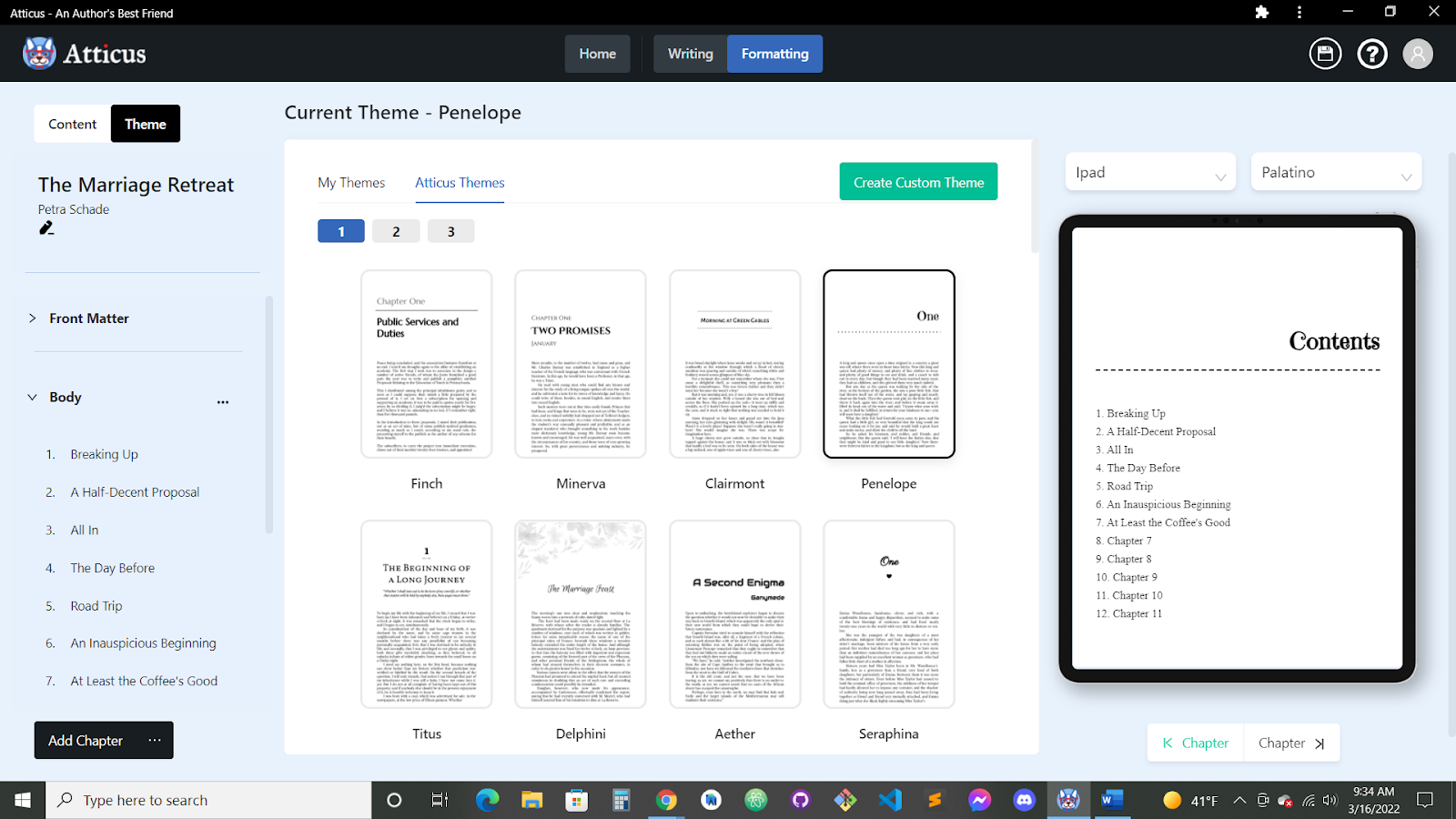
If you’re using Atticus, you’ll see the table of contents is automatically generated based on the pages you create for your book. Handy, right? We think so, too.
Pages (for Mac/iOS) also generates and automatically updates a TOC in the left-hand margin as you write (much like Google Docs), but you can also insert a TOC in your book document. And like the Atticus TOC, this one automatically updates as you add new content set with heading styles.
Use the following steps to insert your Pages TOC:
- If you haven’t done so already, apply paragraph styles to the text you want to appear in your book’s TOC (Heading 1, Heading 2, etc.).
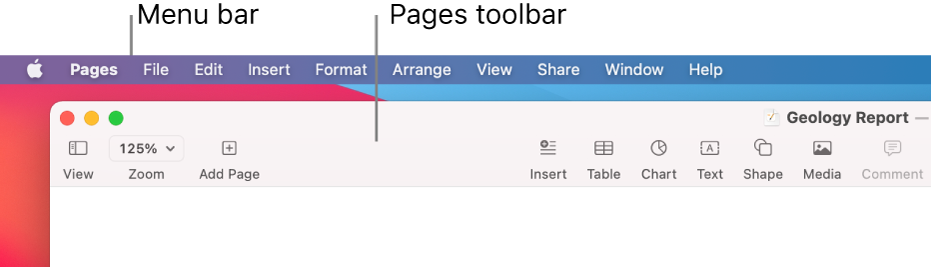
- Click to position your TOC’s insertion point in the text. Then click on the toolbar and select “Table of Contents.”
- To create a TOC for the whole book, click the Insert Table of Contents button at the bottom of your TOC sidebar.
- For more details and instructions on modifying your book’s TOC, click here.
If you don’t see Table of Contents in the “Insert” menu, make sure you’re clicking on the Insert menu at the top of your screen (Menu Bar) — not the Insert option in the toolbar.
If you’re using MS Word, you’ll need to insert one yourself.. We’re not saying that’s a deal-breaker, and plenty of writers prefer Word for book writing and other projects. If Word is your software of choice for this book, use the following steps to create a TOC:
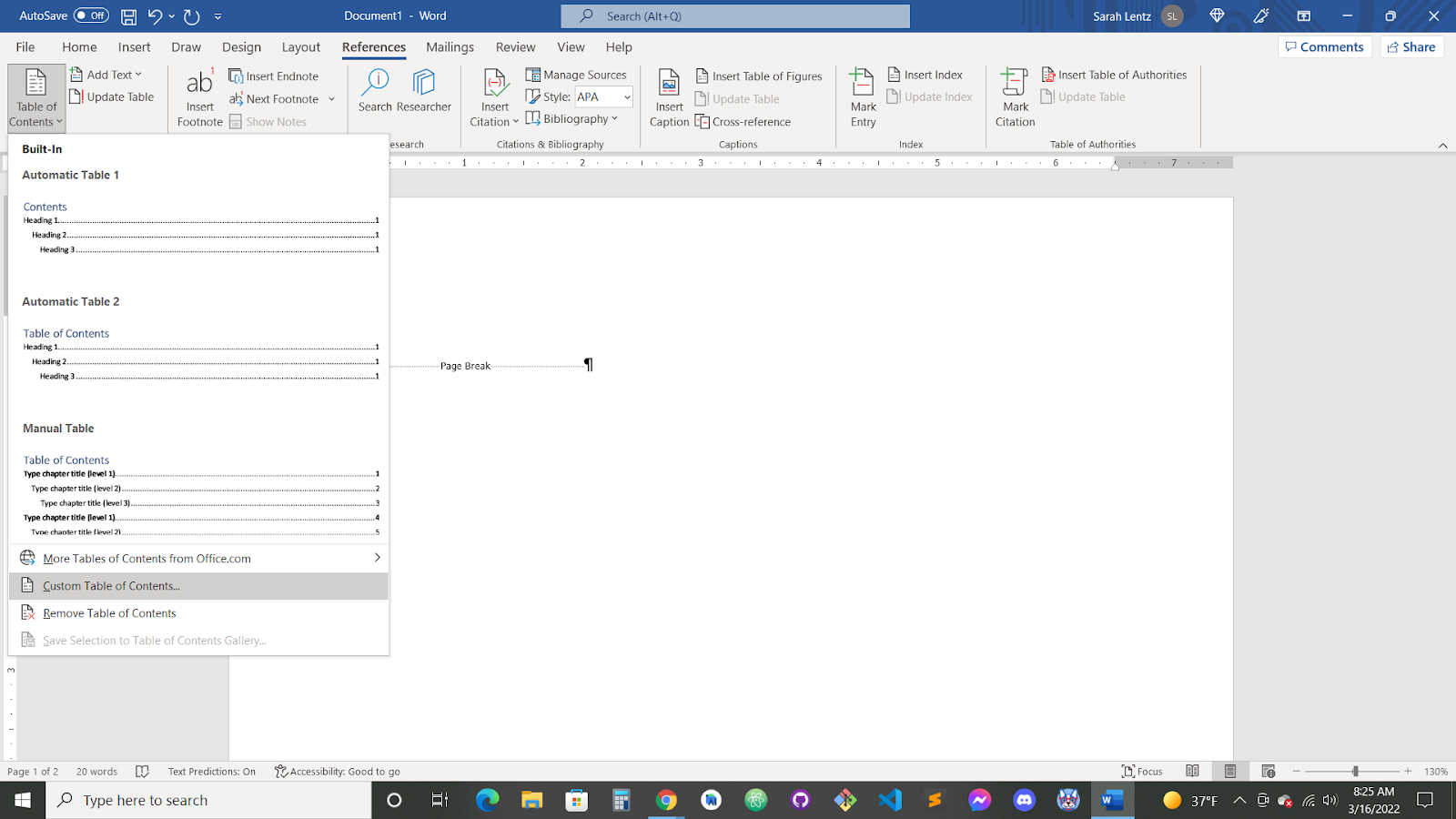
- Go to the “References” Menu and select “Table of Contents” on the left-most end.
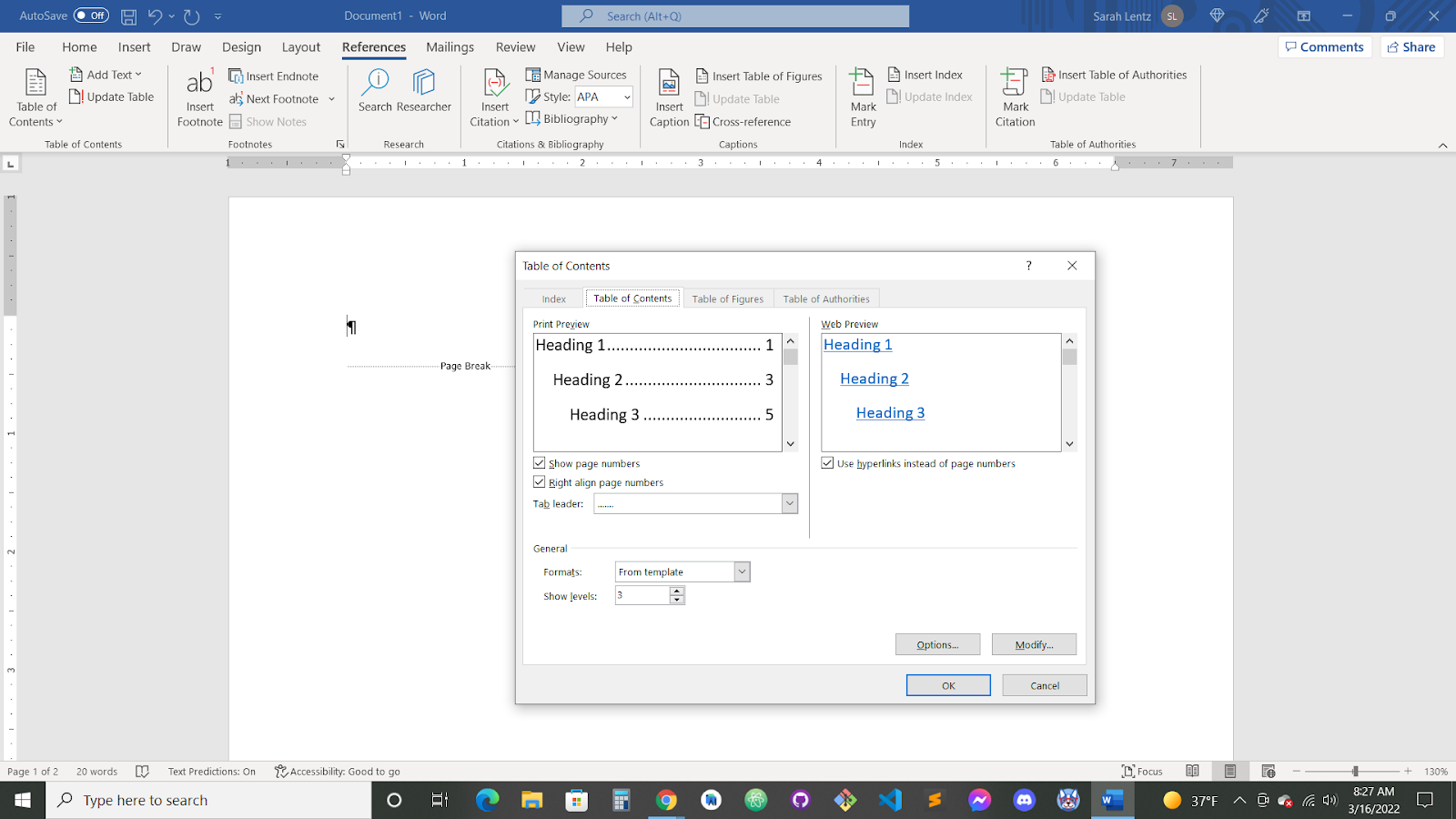
- Choose one of the Automatic Tables, Manual Table, or, further down, select “Custom Table of Contents” to bring up a dialogue box.
- If this is for a print edition, make sure the box for “Show page numbers” is checked. Check the box for “right align page numbers” if you want them lined up on the right side.
- If this is for an ebook, make sure that box is unchecked and that the “Use hyperlinks instead of page numbers” is checked.
- Choose a tab leader (or “none”) from the drop-down menu.
- In the format drop-down menu, choose a specific formatting style for your TOC.
- Choose how many levels you want to show. This will depend on the style you chose for your chapter titles and (if you have any) subtitles.
- Click “Modify” to check out the menu of different style options for your TOC.
- Click “OK” on the main TOC dialogue box to generate your table of contents.
- Select all (Ctrl+A) and adjust the settings if you’d like to select a different font, font size, etc.
Book Table of Contents: 5 Elements to Consider When Creating Yours
When you’re creating and modifying your book’s table of contents, you’ll want to keep the following elements in mind:
- Headings and Heading Styles — In Word, especially, you won’t have a TOC unless your chapter titles are set in Heading 1 or Heading 2 style. You can also set a subtitle/tagline in Heading 3 if you want a three-level (H1-H3) TOC.
- Chapter Numbers — You’ll want your chapters to be numbered, and for some books (namely novels), numbers alone are fine. Those numbers still need to be set in Heading 1 or Heading 2 style.
- Chapter Titles and Subtitles — You can set your book’s title as Heading 1, your chapter titles in Heading 2, and your subtitles (if you have them) in Heading 3; or you can set your title in “Title” style and choose Heading 1 for each page title you want to see on your TOC (including chapter titles, your introduction, etc.).
- Page Numbers — For print editions of your book, you’ll want to make sure page numbers are enabled for your table of contents. You can also choose to align your numbers on the right side and set a tabline leading to them.
- Hyperlinks — For digital/eBook editions, you’ll want to make sure hyperlinks are enabled (and page numbers disabled) for each item on your TOC, so your reader can easily click on (and navigate to) a chapter title that interests them.
Formatting Options: Table of Contents Example
If you’re using Atticus, the app generates and continually updates a TOC based on your book’s existing pages (which you can easily add or remove). The example below uses one of the built-in themes: Penelope.
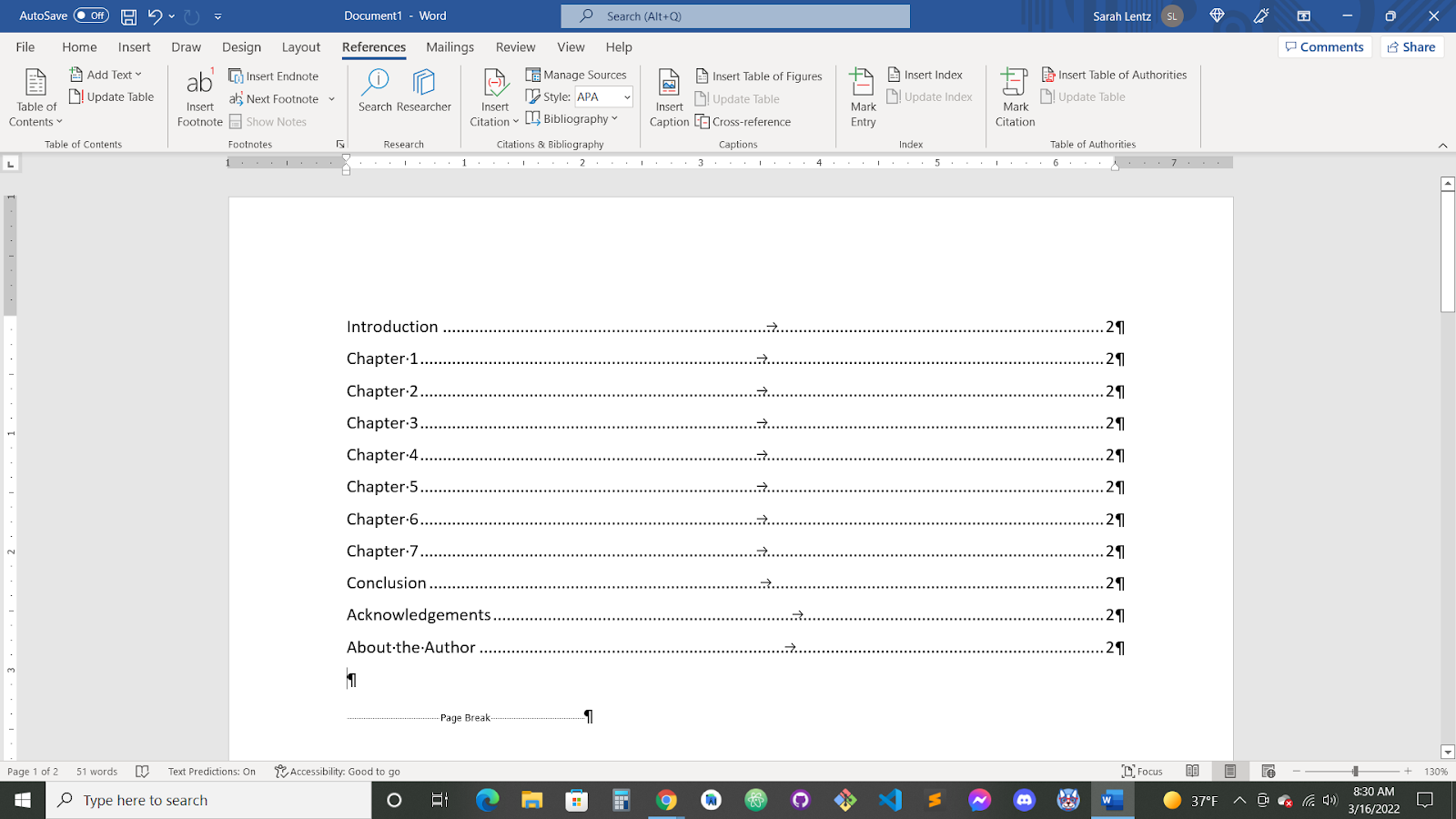
If you’re using MS Word, here are a few table of contents page examples you can create using the Custom TOC option from the References menu.
Example #1 — Basic Print TOC
This one-level TOC uses the basic “from the template” style with page numbers, a dotted tab line, and no hyperlinks.
More Related Articles
How Many Words Should Be In A Chapter Of A Book?
Does A Comma Go Before Or After But?
How To Write A Book In Google Docs
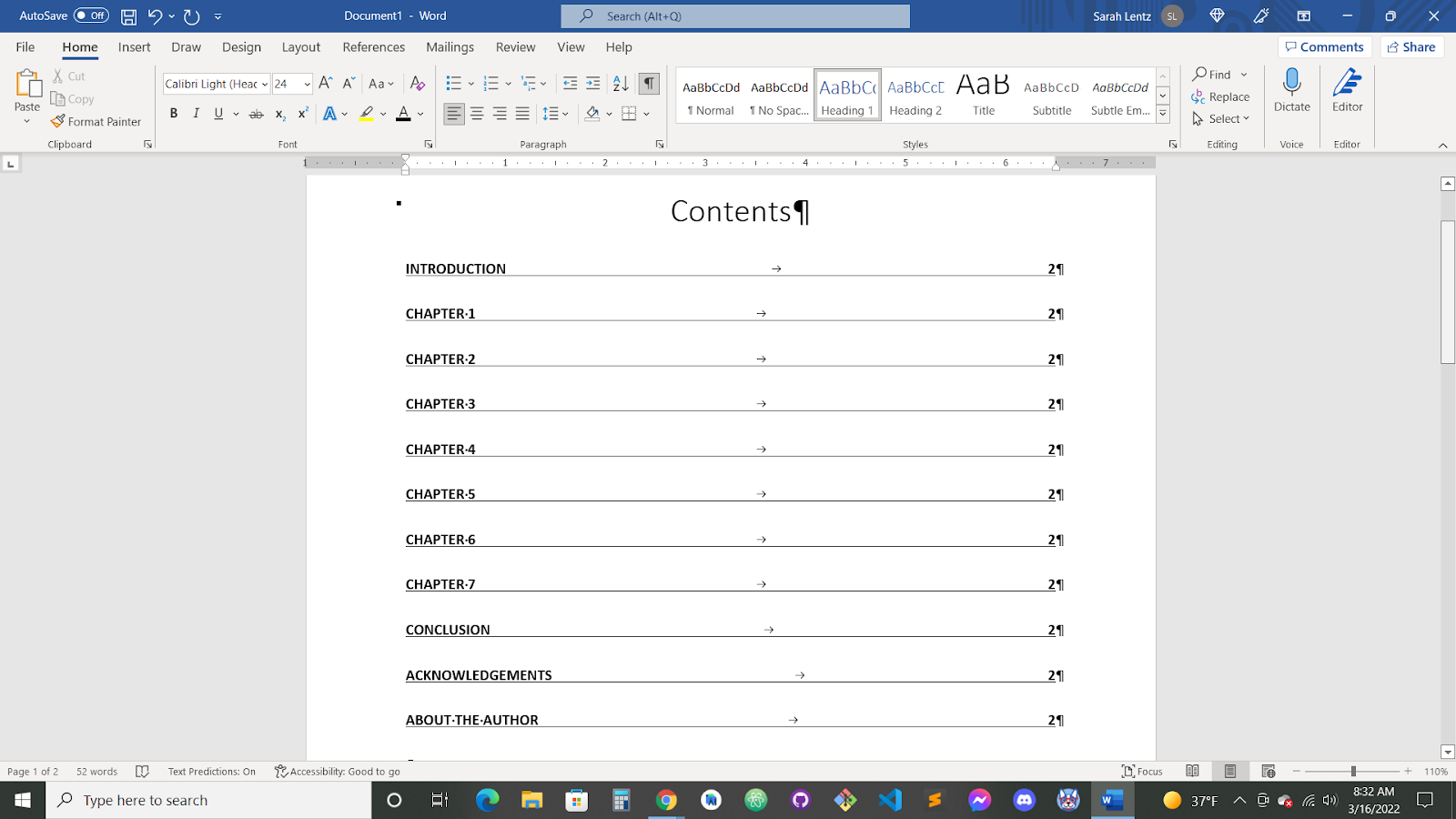
Example #2 — “Fancy” Print TOC
Another example for a book’s printed edition, this one also uses the “Custom TOC” option and opts for “Fancy” formatting from the drop-down format menu.
Example #3 — “Distinctive” eBook (Clickable) TOC
Here’s an example of a custom TOC designed for an ebook — with page numbers turned off and hyperlinks checked. The format style is “Distinctive,” but you can change the style settings using the “Modify” button in the TOC dialogue box.
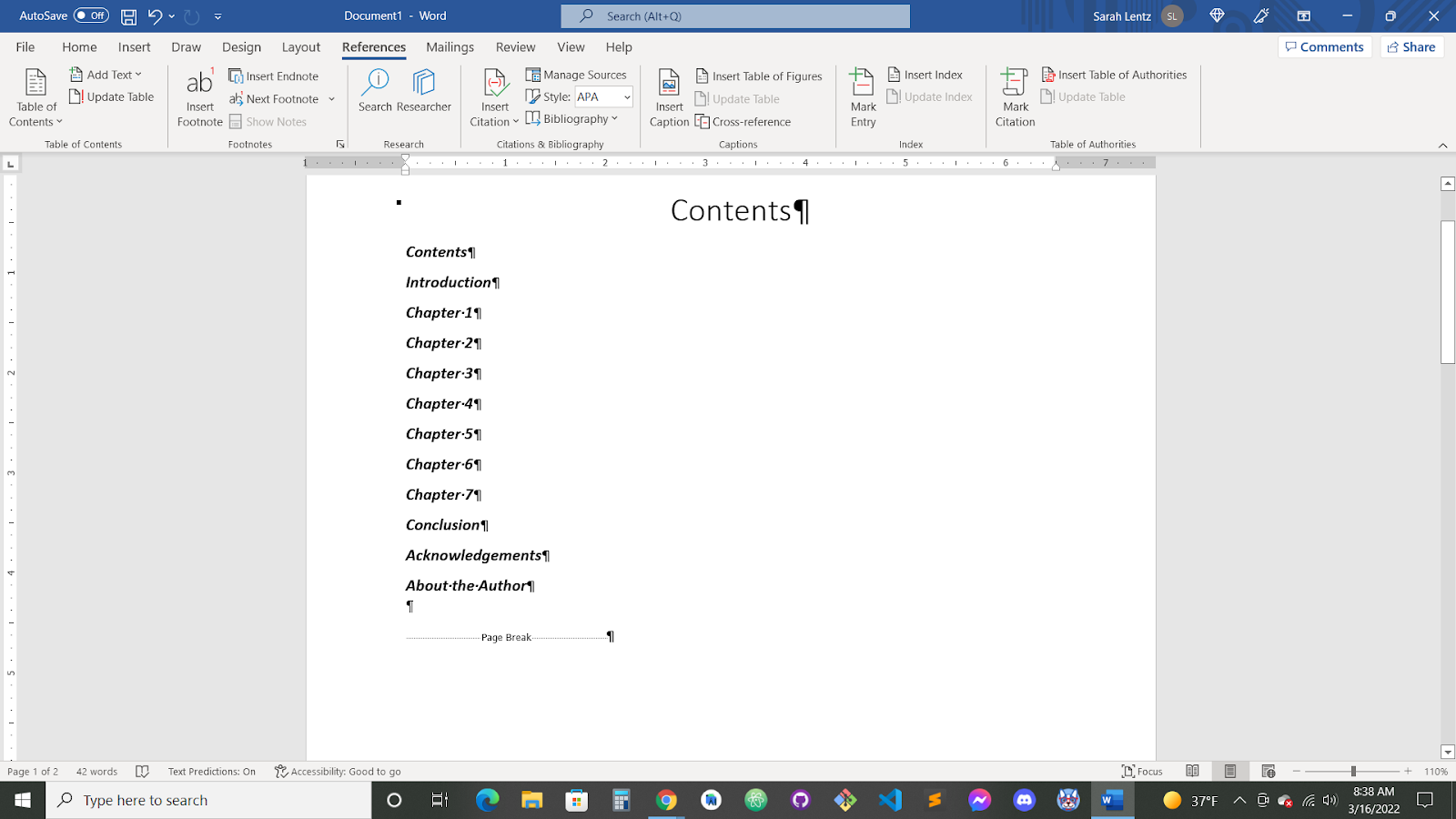
The hyperlinks aren’t evident here, and you’ll need to Ctrl-click on each link to navigate to each page. The links become more visible and easier to use (simple click) after converting your file to MOBI, ePUB, or PDF format.
More TOC Examples
For the sake of variety, let’s look at a few more table of contents examples. The first one shows three heading levels to create a more detailed TOC.
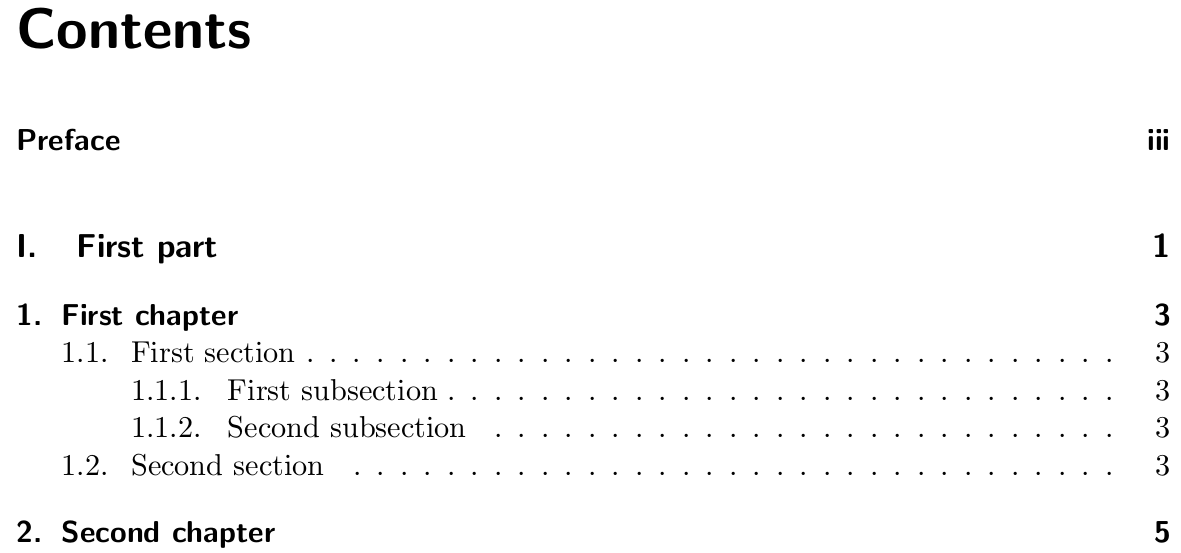
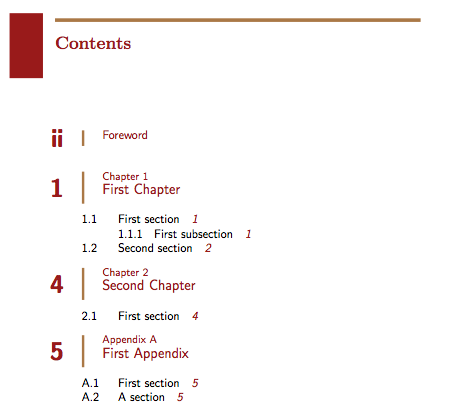
Example #2 — Color
Here’s another TOC with three levels, but this one has some color added (which is an option, though it does add to your printing costs) and some lines added to separate chapter numbers from their titles.
Example #3 — Divided into Parts
This final example shows a two-level TOC divided into parts I and II. The sub-level is shown by adding numbers for the specified sections.
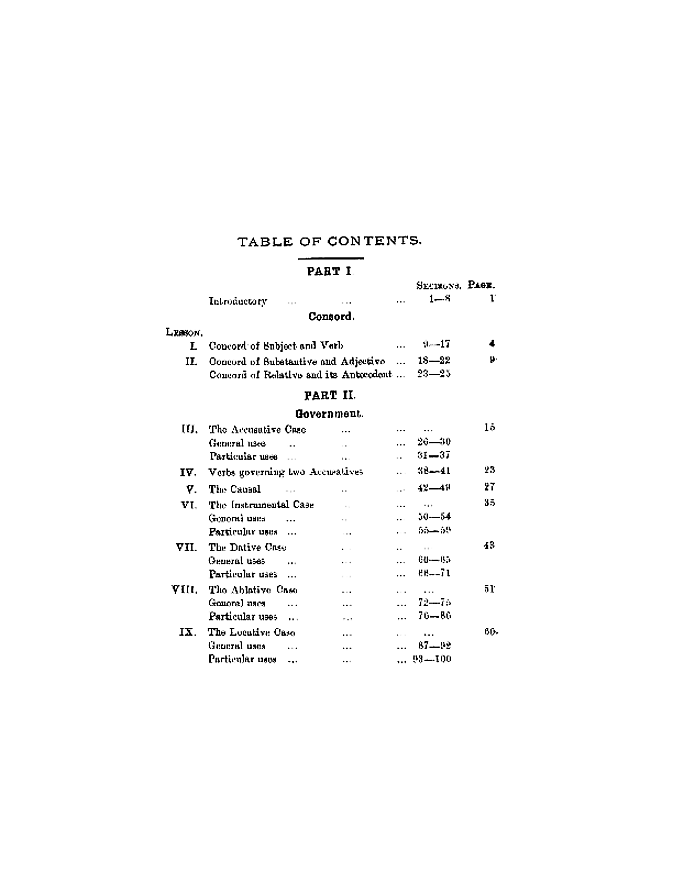
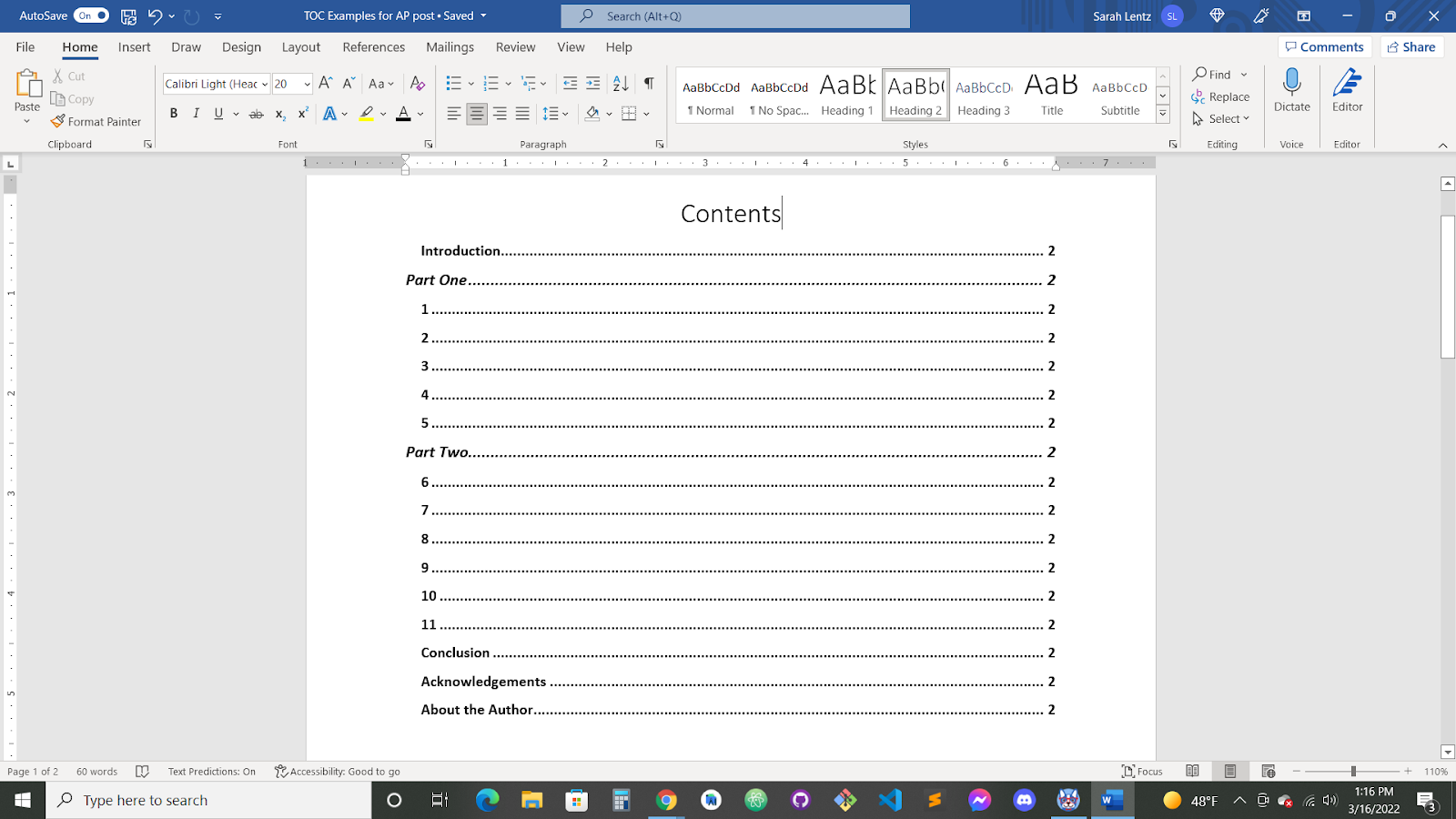
To create something similar in Word, you can set the “Part” titles in Heading 1 and the chapter (and other listed page) titles as Heading 2.
Now that you’re better acquainted with the benefits of having a table of contents in your book — and the basics of creating one — it’s time to practice with a book of your own.
Word’s TOC generator allows you more flexibility with formatting, while Atticus uses your chosen theme and keeps the TOC current as you work.
Whatever you prefer, spend some time playing with the options and comparing your results.